When you submit an e-invoice to ZATCA and it gets rejected, the API response contains error codes that tell you exactly what went wrong. This guide documents the most common ZATCA error codes, explains what they mean, and provides step-by-step fixes for each one.
Whether you are debugging a ZATCA integration or troubleshooting rejected invoices in production, this reference will help you resolve errors quickly.
Understanding ZATCA Response Statuses
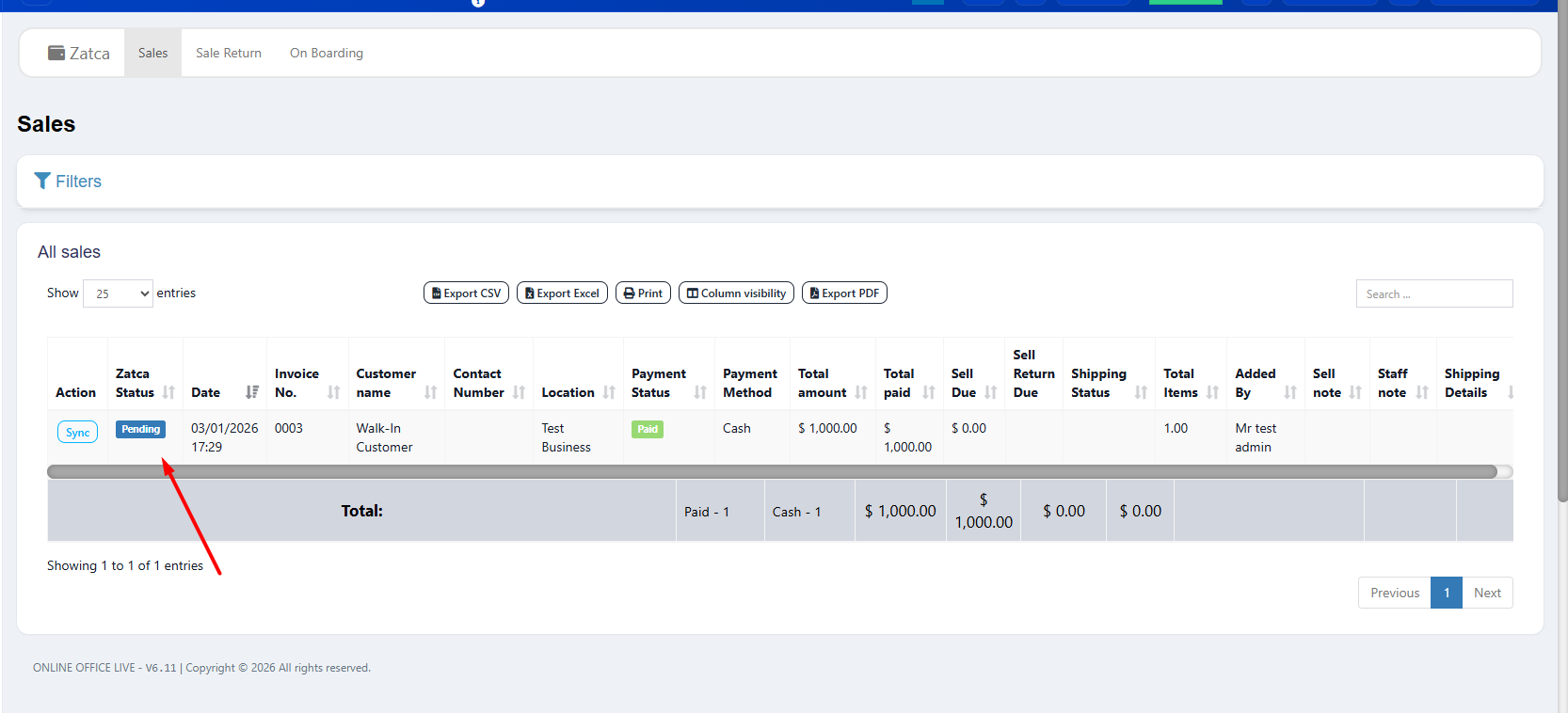
ZATCA invoice status showing pending, cleared, and rejected states
When you submit an invoice to ZATCA's API, you receive one of three response statuses:
| Status | Meaning | Action Required |
|---|---|---|
| REPORTED / CLEARED | Invoice accepted by ZATCA | None — invoice is valid |
| REPORTED WITH WARNINGS | Invoice accepted but has issues | Review and fix warnings |
| REJECTED | Invoice failed validation | Fix errors and resubmit |
Errors vs Warnings
Errors cause rejection — the invoice is not legally valid until fixed. Warnings are accepted but indicate potential problems. ZATCA may escalate repeated warnings to mandatory errors in future updates, so always address warnings promptly.
Invoice Structure Errors (BR-KSA)
BR-KSA codes are Saudi-specific business rules. These are the most common errors:
VAT Calculation Errors
Certificate and Authentication Errors
Common Warning Codes
| Code | Description | Recommended Action |
|---|---|---|
| BT-32 | Buyer VAT number not provided on B2B invoice | Add buyer's VAT number for B2B transactions |
| BR-KSA-68 | Postal code format does not match Saudi pattern | Use 5-digit Saudi postal code format |
| BR-KSA-70 | Building number not provided in address | Add building number to seller/buyer address |
Prevent Errors Before They Happen
Using a validated ZATCA POS system like LookPOS prevents virtually all of these errors. The system validates XML structure, calculates VAT accurately, generates correct QR codes, and handles digital signatures automatically — so your invoices pass ZATCA validation every time.
Stop Debugging ZATCA Errors Manually
LookPOS handles all ZATCA compliance automatically — correct XML structure, valid signatures, accurate calculations, and proper QR codes. Focus on your business, not error codes.
Start Free Trial Get Help NowDebugging Tips
- Always test in sandbox first. Submit invoices to ZATCA's sandbox environment before going live. The sandbox returns the same error codes as production.
- Log the full ZATCA response. Store the complete JSON response including validationResults, warningMessages, and errorMessages for debugging.
- Validate XML schema locally. Use an XML validator against the ZATCA XSD schema before submitting. This catches structural errors instantly.
- Check the previous invoice hash chain. If hash errors appear suddenly on invoices that previously worked, the hash chain may be broken. Verify the previous invoice hash matches the SHA-256 of the prior invoice.
- Verify certificate expiry. Production CSIDs expire after one year. Set up monitoring to renew before expiry.
For technical details on the XML format and API integration, refer to our dedicated guides.
Frequently Asked Questions
REJECTED means your invoice failed one or more ZATCA validation rules. The invoice is not legally valid and cannot be used. You must fix all errors in the response, regenerate the invoice, and resubmit it to ZATCA.
ZATCA includes error details in the API response. Look for the validationResults section which contains errorMessages (causing rejection) and warningMessages (informational). Each message has a code, type, category, and human-readable description. Your e-invoicing system should present these clearly.
Yes. ZATCA has progressively upgraded several warning codes to errors in past updates. Fields that were once optional become mandatory over time. It is best practice to address all warnings immediately rather than waiting for them to become blocking errors.
Common causes: (1) Your CSID certificate expired — renew it. (2) ZATCA updated their validation rules — check ZATCA release notes. (3) The invoice hash chain broke — verify the previous invoice hash. (4) Your API endpoint URL changed — sandbox and production have different URLs.